


Intelligent Telegram Content Automation Powered by OpenAI-Compatible APIs
Generate AI-written text and images, then auto-publish them to your Telegram channel on a fully automated schedule.
Developer Profile · Report Bug · Releases
- Overview
- Features
- Screenshots
- Requirements
- Installation
- Running the Application
- Activation Guide
- Configuration Reference
- Usage Guide
- Project Structure
- Troubleshooting
- FAQ
- Contributing
- License
- Developer
TeleAI-AutoPoster is a desktop application that automates content creation and publishing for Telegram channels. It leverages any OpenAI-compatible API to generate high-quality text posts and AI-generated images, then publishes them to your Telegram channel at a configurable interval — fully hands-free.
Whether you run a news channel, an educational page, a marketing funnel, or a personal blog on Telegram, TeleAI-AutoPoster handles the entire pipeline: ideation → writing → image generation → publishing.
| Feature | Description |
|---|---|
| AI Text Generation | Generates original posts using any OpenAI-compatible chat model (GPT-4o, GPT-4o-mini, DeepSeek, Llama, Mistral, etc.) |
| AI Image Generation | Creates relevant images using DALL·E 3, DALL·E 2, or any compatible image model |
| Smart Image Mode | AI analyzes each post and decides whether an image adds value |
| Auto-Posting Loop | Runs continuously at your chosen interval (1–1440 minutes) until manually stopped |
| Custom Base URL | Works with OpenAI, OpenRouter, Together AI, Groq, local LLMs, or any OpenAI-compatible endpoint |
| Manual Content Queue | Schedule your own text/media posts alongside AI-generated content |
| Prompt Engineering | Full control over tone, audience, style, temperature, keywords, and content rules |
| Real-Time Logging | Color-coded system log with level and category filters |
| SQLite Persistence | All logs, queue items, and statistics stored locally |
| Glassmorphism Dark UI | Modern, minimal interface built with PyQt5 |
| Live GitHub Profile | About tab fetches developer profile directly from GitHub API |
Before installation, ensure you have:
- Python 3.9 or higher (Download)
- pip (included with Python)
- An OpenAI-compatible API key (see Activation Guide)
- A Telegram Bot Token (see Telegram Bot Setup)
Option A: Clone with Git
git clone https://github.com/BSHF-PER/TeleAI-AutoPoster.git
cd TeleAI-AutoPoster
Option B: Download ZIP
- Go to the repository page.
- Click the green Code button → Download ZIP.
- Extract the ZIP file to your desired directory.
Open a terminal (Command Prompt, PowerShell, or Terminal) in the project folder and run:
pip install openai PyQt5 requestsIf you encounter issues with PyQt5.QtSvg, install it explicitly:
pip install PyQt5 PyQt5-sipNote: On some systems, you may need
pip3instead ofpip, orpython -m pip installinstead.
python -c "import openai; import PyQt5; import requests; print('All dependencies OK')"If you see All dependencies OK, you are ready to proceed.
Navigate to the project directory and run:
python Main.pyOr on Windows with the py launcher:
py Main.pyThe TeleAI-AutoPoster window will open. You will see six tabs:
| Tab | Purpose |
|---|---|
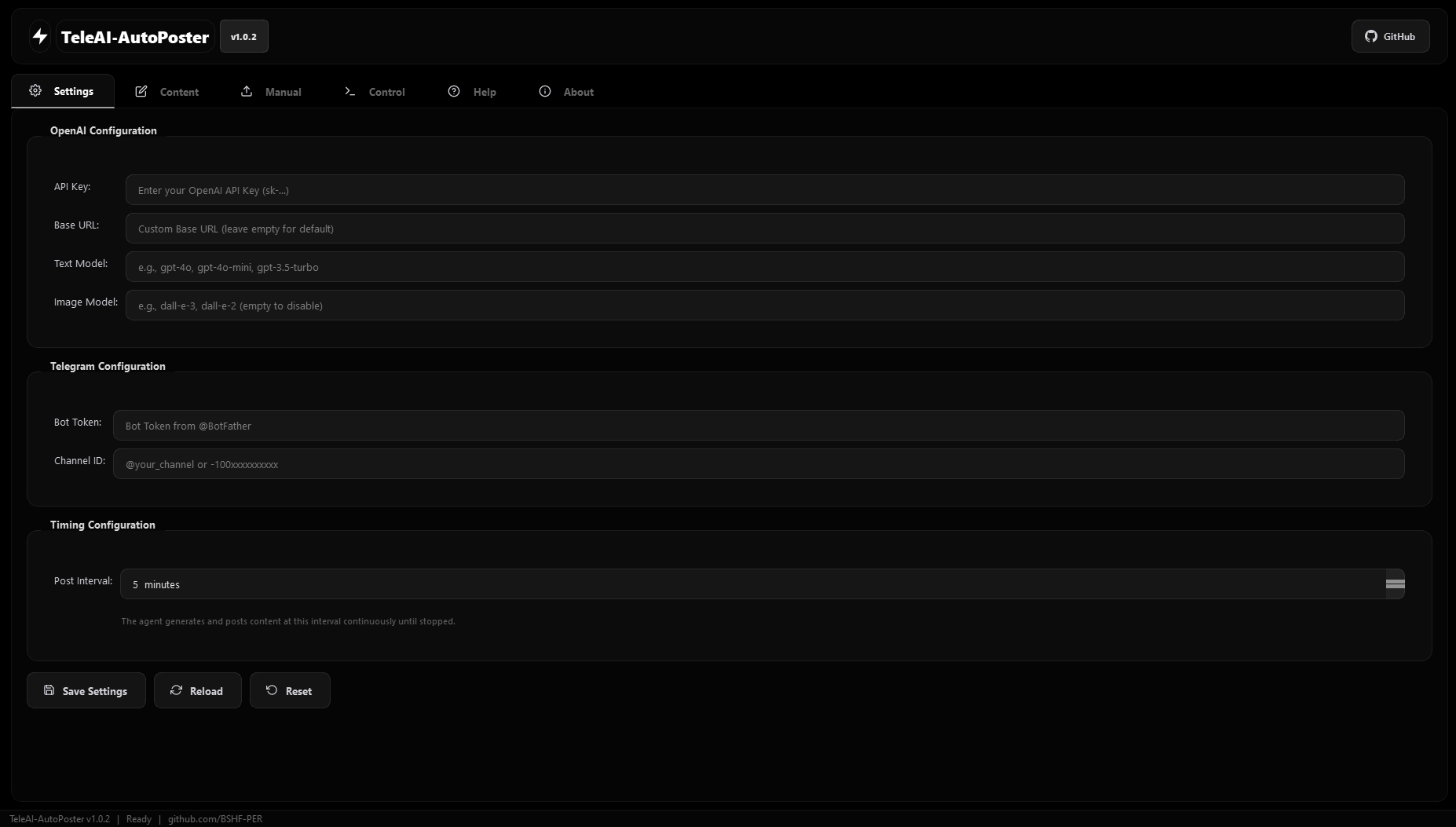
| Settings | API keys, models, Telegram config, timing |
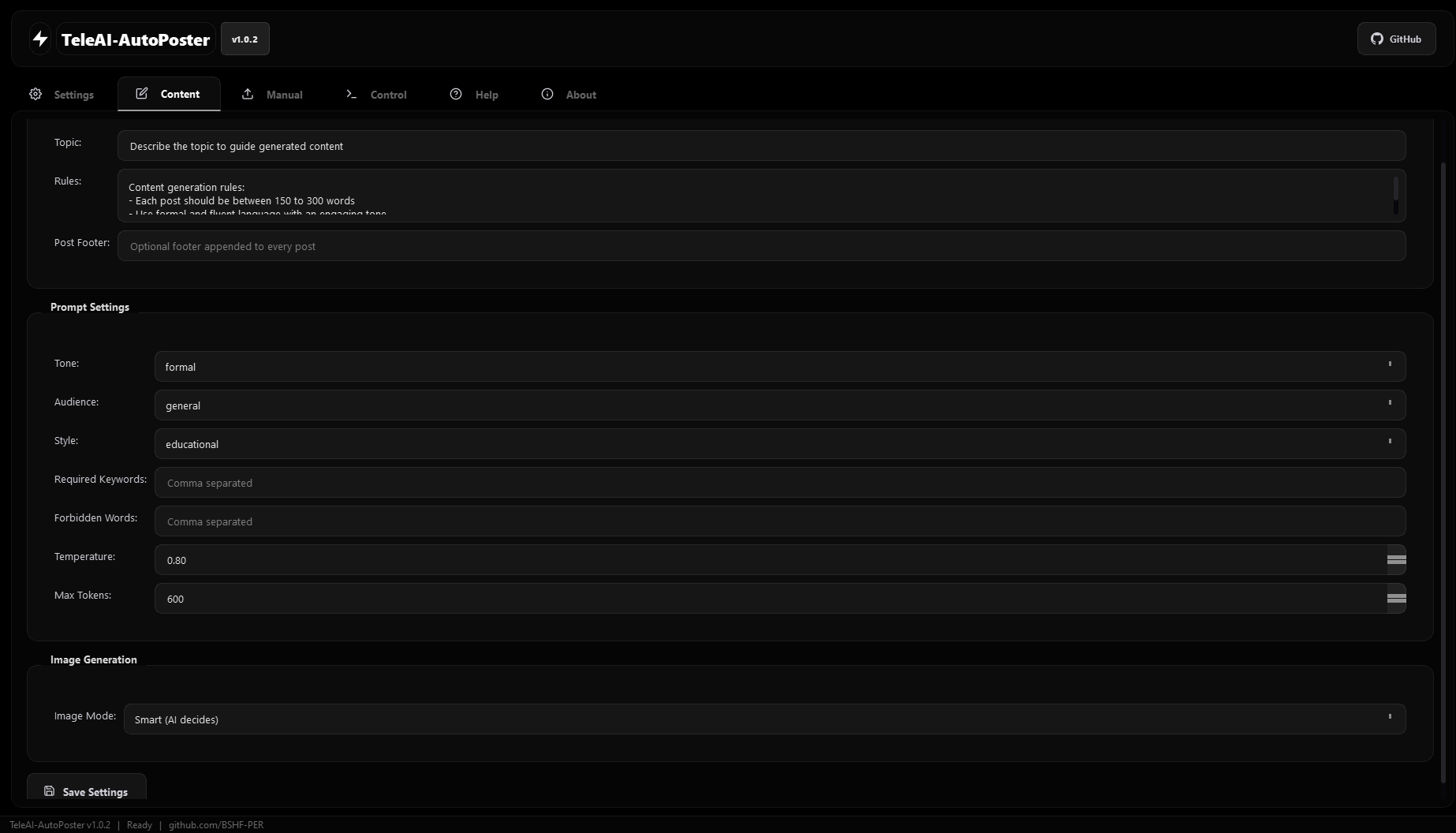
| Content | Topic, rules, prompt tuning, image mode |
| Manual | Upload and schedule your own content |
| Control | Start/Stop the agent, view live logs |
| Help | Complete in-app user guide |
| About | Version info, developer profile, tech stack |
This section walks you through obtaining and configuring every required credential, step by step.
- Go to https://platform.openai.com and create an account (or sign in).
- Navigate to API Keys → Create new secret key.
- Copy the key (starts with
sk-). - In TeleAI-AutoPoster → Settings tab:
- API Key: Paste your
sk-...key. - Base URL: Leave empty (defaults to
https://api.openai.com/v1). - Text Model: Enter a model name, e.g.:
gpt-4o(best quality)gpt-4o-mini(fast and cheap)gpt-3.5-turbo(legacy, cheapest)
- Image Model: Enter
dall-e-3ordall-e-2. Leave empty to disable image generation.
- API Key: Paste your
- Click Save Settings.
OpenRouter gives you access to hundreds of models (GPT-4o, Claude, Llama, Mistral, DeepSeek, etc.) through a single API key.
-
Go to https://openrouter.ai and create an account.
-
Go to Keys → Create Key.
-
Copy the key (starts with
sk-or-). -
In TeleAI-AutoPoster → Settings tab:
- API Key: Paste your
sk-or-...key. - Base URL: Enter exactly:
https://openrouter.ai/api/v1 - Text Model: Use OpenRouter model IDs, e.g.:
openai/gpt-4oopenai/gpt-4o-minianthropic/claude-sonnet-4meta-llama/llama-3.1-70b-instructdeepseek/deepseek-chatmistralai/mistral-large
- Image Model: Use OpenRouter model IDs, e.g.:
openai/gpt-image-2black-forest-labs/flux.2-klein-4b
- API Key: Paste your
-
Click Save Settings.
Tip: Browse all available models at https://openrouter.ai/models.
TeleAI-AutoPoster works with any provider that exposes an OpenAI-compatible /v1/chat/completions endpoint.
| Field | Value |
|---|---|
| API Key | Your Together AI key |
| Base URL | https://api.together.xyz/v1 |
| Text Model | e.g., meta-llama/Llama-3.3-70B-Instruct-Turbo |
| Field | Value |
|---|---|
| API Key | Your Groq key |
| Base URL | https://api.groq.com/openai/v1 |
| Text Model | e.g., llama-3.3-70b-versatile, mixtral-8x7b-32768 |
| Field | Value |
|---|---|
| API Key | Your DeepSeek key |
| Base URL | https://api.deepseek.com/v1 |
| Text Model | deepseek-chat or deepseek-reasoner |
| Field | Value |
|---|---|
| API Key | Any non-empty string (e.g., not-needed) |
| Base URL | http://localhost:11434/v1 (Ollama) or http://localhost:1234/v1 (LM Studio) |
| Text Model | The model name loaded in your local server |
Important: When using a custom Base URL, the provider must support the standard OpenAI chat completions format. Image generation requires a provider that supports the
/v1/images/generationsendpoint.
- Open Telegram and search for @BotFather.
- Send
/newbotand follow the prompts:- Choose a display name for your bot.
- Choose a username (must end in
bot, e.g.,MyAutoPosterBot).
- BotFather will reply with your Bot Token — a string like:
7123456789:AAH1b2C3d4E5f6G7h8I9j0K1l2M3n4O5p6 - Copy this token.
- Add the bot as an admin to your Telegram channel:
- Open your channel → Settings → Administrators → Add Admin.
- Search for your bot's username and add it.
- Grant at minimum: Post Messages permission.
- Get your Channel ID:
- If your channel is public, use
@your_channel_username. - If private, forward a message from the channel to @userinfobot or @getidsbot to get the numeric ID (e.g.,
-1001234567890).
- If your channel is public, use
- In TeleAI-AutoPoster → Settings tab:
- Bot Token: Paste the token from BotFather.
- Channel ID: Enter
@your_channelor-100xxxxxxxxxx.
- Click Save Settings.
All settings are stored in teleai_config.json in the project directory. You can edit this file directly or use the GUI.
| Field | Required | Description |
|---|---|---|
| API Key | Yes | Your OpenAI-compatible API key |
| Base URL | No | Custom endpoint. Empty = official OpenAI |
| Text Model | Yes | Model for text generation |
| Image Model | No | Model for image generation. Empty = disabled |
| Bot Token | Yes | Telegram bot token from @BotFather |
| Channel ID | Yes | Target channel (@name or -100...) |
| Post Interval | Yes | Minutes between each auto-post (1–1440) |
| Field | Description |
|---|---|
| Topic | Main subject that guides all generated content |
| Rules | Detailed instructions for the AI writer |
| Post Footer | Text appended to every published post |
| Tone | formal / friendly / educational / promotional / humorous |
| Audience | general / professionals / youth / children / seniors |
| Style | educational / narrative / listicle / analytical / news |
| Required Keywords | Comma-separated keywords the AI must include |
| Forbidden Words | Comma-separated words the AI must avoid |
| Temperature | 0.0 (deterministic) to 2.0 (creative). Default: 0.8 |
| Max Tokens | Maximum response length. Default: 600 |
| Image Mode | Smart / Always / Never |
- Open the Control tab.
- Verify your settings are saved (Settings tab → Save).
- Click Start.
- The agent will immediately:
- Generate an AI text post based on your topic and rules.
- Optionally generate a matching image (depending on Image Mode).
- Publish everything to your Telegram channel.
- Wait for the configured interval.
- Repeat indefinitely.
- Click Stop in the Control tab.
- The agent finishes its current cycle gracefully, then halts.
- You can also close the application window (a confirmation dialog will appear).
- Go to the Manual tab.
- Enter your text and optionally attach a media file (image, video, or audio).
- Set a scheduled date and time.
- Click Add to Queue.
- Manual content is processed before AI content in each cycle.
- The Control tab shows a real-time, color-coded log:
- White — Info messages
- Yellow — Warnings
- Red — Errors
- Use the Level and Category dropdowns to filter logs.
- The stats bar shows total posts, images generated, and estimated API cost.
TeleAI-AutoPoster/
├── Main.py                 # Main application (single file)
├── teleai_config.json       # User configuration (auto-created)
├── teleai_database.db       # SQLite database (auto-created)
├── temp_images/             # Temporary AI-generated images (auto-cleaned)
├── README.md                # This file
└── LICENSE                  # MIT License
| Problem | Solution |
|---|---|
ModuleNotFoundError: No module named 'openai' |
Run pip install openai |
ImportError: cannot import name 'QSvgRenderer' |
Run pip install PyQt5 PyQt5-sip |
AuthenticationError / 401 Unauthorized |
Verify your API key is correct and has active credits |
Telegram: Error 403 |
Bot is not an admin of the channel, or Channel ID is wrong |
Telegram: Error 400 - chat not found |
Channel ID format is incorrect. Use @username or -100... format |
Model not found / 404 |
Check the model name exactly. OpenRouter uses provider/model format |
| No image generated | Ensure Image Model is set. Custom Base URLs must support /v1/images/generations |
| Application won't start | Ensure Python 3.9+ is installed. Try python --version |
pip not recognized |
Use python -m pip install ... or add Python to your system PATH |
Q: Can I use this with a free API? A: Yes. Providers like Groq offer generous free tiers. Local LLMs via Ollama are completely free. Set the Base URL accordingly.
Q: Does it support multiple channels? A: The current version (v1.0.2) supports one Telegram channel per instance. Run multiple instances with different config files for multiple channels.
Q: Can I use it without image generation? A: Yes. Leave the Image Model field empty, or set Image Mode to "Never" in the Content tab.
Q: Is my API key stored securely?
A: The key is stored in teleai_config.json in plain text. Keep this file private and do not commit it to version control.
Q: What happens if the API is temporarily unavailable? A: The agent logs the error and retries after 60 seconds. It does not crash on transient failures.
Q: Can I customize the content language? A: Yes. Write your Topic and Rules in any language. The AI will generate content in the language of your prompt.
Contributions are welcome. Please follow these steps:
- Fork the repository.
- Create a feature branch:
git checkout -b feature/your-feature. - Commit your changes:
git commit -m "Add your feature". - Push to the branch:
git push origin feature/your-feature. - Open a Pull Request.
This project is licensed under the MIT License — see the LICENSE file for details.

Behzad Shahbazi Fard
Persian Developer
github.com/BSHF-PER
TeleAI-AutoPoster v1.0.2 · Built with Python, PyQt5 & OpenAI API · 2026


